Unlock the full potential of your Steam gaming experience by mastering voice chat and integrating musical expression. This comprehensive guide, tailored for busy US gamers balancing life and play, navigates the world of in-game communication, optimizing your microphone setup, and discovering rhythm or karaoke games. Learn essential troubleshooting tips for common audio issues, explore social gaming etiquette, and uncover budget-friendly hardware upgrades that enhance your vocal interactions. Whether you're coordinating tactics with friends, performing a spontaneous tune in a virtual world, or simply aiming for crystal-clear communication, this article provides practical, actionable advice. We address everything from privacy considerations to finding time for creative play amidst a busy schedule, ensuring you stay current with 2026 gaming trends without the hype. Dive in to elevate your Steam social and musical journey.
What is the best mic for Steam voice chat on a budget?
For gamers on a budget, USB condenser microphones like the Blue Yeti Nano or Razer Seiren Mini offer excellent clarity without breaking the bank. They're plug-and-play, making setup easy for busy adults.
How can I reduce background noise when using voice chat in Steam games?
To reduce background noise, enable noise suppression features in your mic software or Discord, use a cardioid microphone pattern, and game in a quieter environment. Headsets with good passive noise cancellation also help.
Are there any free games on Steam where I can practice singing or vocal performance?
While dedicated free singing games are rare, many free-to-play social games on Steam allow for vocal expression. Games like VRChat or various sandbox titles offer stages and communities where players can perform, utilizing Steam's voice features.
What are the privacy considerations for using voice chat on Steam?
Always be mindful of who you're speaking with. Use push-to-talk instead of open mic, and only join voice channels with trusted friends. Steam's privacy settings allow you to control who can send you messages and invite you to games.
How do I set up my audio interface for singing in a Steam game or streaming?
Connect your audio interface to your PC, install its drivers, then select it as your input and output device in Windows sound settings. Within Steam or your streaming software like OBS, choose the interface's input for your microphone, ensuring optimal sound quality for your vocal performance.
Can I connect a professional XLR microphone to Steam for high-quality audio?
Yes, you can connect an XLR microphone to Steam, but you'll need an audio interface (like a Focusrite Scarlett) that converts the analog XLR signal to a digital USB signal for your PC. This setup provides superior sound quality for recording or streaming.
What popular Steam games have active communities for musical collaboration or performance?
Games like VRChat, Garry's Mod, and even some open-world MMOs often host player-run events where users can perform music or collaborate vocally. Look for dedicated community servers or Discord groups focused on music within these titles.
Hey there, fellow gamers! Ever find yourself in the middle of an intense raid or a cozy co-op session on Steam, wishing your voice chat was clearer, or wondering if there’s a better way to express yourself musically within your favorite games? You’re not alone. For many of us, especially the roughly 60% of gamers who are balancing careers, families, and life's demands, gaming is more than just a pastime; it's a vital escape, a social hub, and a place to build skills and connections. We want relaxation, fun, and optimal performance without the jargon or the need to spend a fortune.
The concept of 'sing in Steam' might sound a little niche, but it truly encompasses everything from crystal-clear voice communication with your squad to diving into rhythm games that let you belt out tunes, or even just sharing music with friends during a chill gaming night. With 87% of US gamers regularly logging in for an average of 10+ hours a week, and social gaming trends continuing to dominate, ensuring your voice is heard and your musical side can shine on Steam is more important than ever. This guide is your no-nonsense resource, packed with practical tips to cut through the noise and get you set up for the best vocal and musical experience on Steam.
What Does It Truly Mean to Sing in Steam for Today's Gamer?
In 2026, 'singing in Steam' isn't just about belting out karaoke hits, though that's certainly part of it! It primarily refers to effectively utilizing your voice for communication, collaboration, and creative expression within the Steam ecosystem. This includes seamless voice chat in multiplayer games, participating in community events with vocal elements, enjoying music or rhythm games, and even setting up your audio for streaming your vocal performances. It’s about ensuring your voice is a clear, engaging part of your gaming identity, whether you're strategizing with teammates or jamming to a game's soundtrack.
How Can I Optimize My Microphone Setup for Crystal-Clear Voice Communication on Steam?
A clear microphone is crucial for effective communication. Many busy gamers find themselves struggling with muffled audio or annoying background noise. Here’s how to optimize your setup:
- Choose the Right Mic: For most gamers, a good gaming headset with a built-in mic is sufficient. If you want a step up for streaming or better quality, consider a standalone USB microphone like a HyperX QuadCast or a Blue Yeti. For serious vocal work, an XLR mic with an audio interface is the pro choice.
- Proper Placement: Position your microphone close to your mouth, typically 2-6 inches away, but off to the side to avoid plosives (harsh 'p' and 'b' sounds).
- Software Settings: Go to Steam > Settings > Voice. Adjust your input volume and enable 'Echo Cancellation' and 'Noise Reduction'. In Windows Sound Settings, under your microphone properties, you can often find 'Enhancements' like noise suppression. If you use Discord for voice chat, leverage its built-in noise suppression and Krisp feature.
- Push-to-Talk vs. Open Mic: Unless you have a very quiet environment and excellent noise gating, use push-to-talk. This prevents accidental sounds from broadcasting and improves the overall quality of conversation for everyone.
Which Steam Games Offer the Best Experiences for Musical Expression or Karaoke?
Steam has a vibrant selection of games that let you flex your musical muscles. Here are a few categories and examples:
- Rhythm Games: These are a direct hit for musical expression. Titles like Beat Saber (with VR, but many non-VR alternatives exist), osu!, Muse Dash, and Clone Hero offer addictive beat-matching gameplay.
- Karaoke Games: While Steam doesn't have an official 'karaoke' category, games like Karaoke Night or community-driven experiences within social platforms like VRChat (where users create their own karaoke bars) come close. Many party games also incorporate musical elements.
- Creative & Sandbox Games: Titles like Garry's Mod, Minecraft (available through Steam if you link accounts), and even some MMOs allow players to create instruments or performance spaces where you can 'sing' using voice chat or custom soundboards.
- Music Creation Software: For those who want to produce, not just perform, Steam hosts excellent DAWs (Digital Audio Workstations) and music-making tools like FL Studio or Ableton Live (though these are professional tools).
Are There Free-to-Play Options for Singing or Music-Focused Gaming on Steam?
Absolutely! Budget-friendly gaming is always a win, especially when balancing expenses. While dedicated free singing games are less common, you can still find great experiences:
- Free-to-Play Social Games: VRChat is a prime example. It's free to play, and within its vast user-created worlds, you'll find countless virtual karaoke bars, open mics, and musical performance venues where you can use your voice.
- Rhythm Game Demos & Community Content: Many rhythm games offer free demos. Additionally, games like osu! are free and rely on user-submitted beatmaps, providing endless hours of musical challenges.
- Game Mods & Community Servers: For games like Garry's Mod (which often goes on sale for very cheap), community servers frequently host events that involve music, voice acting, or even improv comedy, all leveraging Steam's voice capabilities.
How Do I Troubleshoot Common Voice Chat Issues in Steam Games?
Nothing is more frustrating than a non-working mic. Here are quick fixes for typical problems:
- Check Default Devices: Ensure your preferred microphone is set as the 'Default Communication Device' in Windows Sound Settings (right-click speaker icon in taskbar). Do the same in Steam's voice settings.
- Permissions: Verify that Steam and your game have permission to access your microphone in Windows Privacy Settings (Start > Settings > Privacy & security > Microphone).
- Driver Updates: Outdated audio drivers can cause issues. Check your motherboard's or audio interface manufacturer's website for the latest drivers.
- Test in Steam: Use the 'Test Microphone' feature in Steam Settings > Voice to confirm your mic is picking up sound.
- In-Game Settings: Always double-check the specific game's audio or voice settings, as they can sometimes override Steam's defaults.
- Restart Everything: The classic IT solution often works. Restart Steam, the game, and even your entire PC.
What Are the Best Practices for Social Interaction and Vocal Etiquette on Steam?
Good etiquette makes for better gaming for everyone. Here's how to be a considerate vocal gamer:
- Use Push-to-Talk (PTT): As mentioned, PTT is king. It prevents ambient noise, keyboard clicks, or background conversations from disturbing others.
- Be Mindful of Volume: Nobody wants to be deafened by a loud mic or strain to hear a quiet one. Adjust your levels appropriately.
- Respect Others: Avoid shouting, excessive profanity, or discriminatory language. Keep conversations relevant to the game, unless everyone agrees to casual chat.
- Mute When Needed: If you need to have a private conversation offline, or if there's significant background noise temporarily, mute yourself.
- Ask Before Playing Music: Never blast music through your mic unless you've cleared it with your teammates. What you love, they might hate.
Can I Use External Music Software or Streaming Services While Gaming on Steam?
Absolutely! Many gamers, especially the 36-year-old average, love to listen to their own tunes or even have a podcast running in the background. Most modern PCs can handle running a game, Steam, and a music player (like Spotify, Apple Music, or YouTube) simultaneously without significant performance drops, especially if you have ample RAM (16GB+ is ideal for multitasking). Just manage your audio levels to ensure game sounds or voice chat aren't drowned out. Some games even have built-in music players or integrations, but for the most part, a separate browser tab or desktop application for your music service works perfectly.
How Do Streamers and Content Creators 'Sing in Steam' and Share It with Their Audience?
Many popular streamers leverage voice and music to engage their audience. They typically use a combination of:
- Dedicated Microphones: High-quality USB or XLR microphones are standard for clear vocal capture.
- Broadcasting Software: OBS Studio or Streamlabs Desktop are popular free tools. These allow streamers to mix multiple audio sources (game audio, mic audio, music playback) and send them to platforms like Twitch or YouTube.
- Audio Mixers/Interfaces: Physical or virtual mixers (like VoiceMeeter Banana) give granular control over audio levels and routing, allowing them to balance game sound with their voice and background music.
- DMCA-Safe Music: Crucially, streamers use royalty-free music or music they have licenses for to avoid copyright strikes when playing background tracks or performing covers.
- Vocal Performance Games: They might stream themselves playing rhythm games, or participating in social games that allow for vocal performances, directly interacting with their chat.
What Budget-Friendly Gear Upgrades Can Improve My Steam Vocal Experience?
You don't need to break the bank for better audio. Here are smart, budget-conscious upgrades:
- Entry-Level USB Microphone: Instead of a high-end XLR setup, a good USB mic like the Razer Seiren Mini ($50) or a basic Blue Yeti Nano ($70) offers significantly better clarity than most headset mics.
- Pop Filter: For under $10-20, a pop filter drastically reduces harsh 'p' and 'b' sounds, making your voice much smoother.
- Microphone Arm: A desk-mounted mic arm (often $15-30) frees up desk space and allows for optimal mic positioning, reducing desk vibrations and improving sound.
- Open-Back Headphones: While not a mic upgrade, pairing your standalone mic with open-back headphones (like Philips SHP9500, around $70-100) improves soundstage and comfort for long sessions, making it easier to monitor your own voice.
How Can Busy Gamers Find Time for Music and Social Gaming on Steam?
Balancing work, family, and gaming is a common challenge. Here's how to fit in more music and social interaction on Steam:
- Scheduled Sessions: Treat gaming like an appointment. Block out 1-2 hours a few times a week for dedicated social or musical gaming.
- Quick Play Sessions: Many rhythm games are perfect for short bursts of play. Even 15-30 minutes can be a refreshing break.
- Cozy Games: Lean into social/cozy games that offer a relaxed atmosphere for chatting and unwinding, rather than high-intensity competitive titles. Games like Stardew Valley or Valheim are great for casual voice chat with friends.
- Join Communities: Find Discord servers or Steam groups focused on specific games or musical interests. These communities often organize events that make it easier to jump into social play without extensive planning.
- Cross-Play Options: If friends are on console, look for Steam games with cross-play support to maximize your social circle.
By implementing these tips, you'll not only improve your technical setup but also enhance your overall gaming satisfaction, making your time on Steam more enjoyable, social, and musically expressive. The average gamer is looking for value, performance, and fun, and optimizing your voice and music experience delivers on all fronts.
FAQ Section
Q: Can I use a USB microphone for Steam voice chat? A: Yes, most USB microphones are plug-and-play compatible with Steam and offer excellent sound quality, making them a great upgrade from basic headset mics for clear communication.
Q: What are some popular rhythm games on Steam? A: Highly popular choices include Beat Saber, osu!, Muse Dash, and Clone Hero. These games offer engaging gameplay that tests your timing and musicality.
Q: How do I mute myself quickly in Steam voice chat? A: Many games have an in-game mute button, or you can assign a push-to-talk keybind in Steam's voice settings. Your microphone might also have a physical mute switch for instant silencing.
Q: Does Steam have built-in karaoke features? A: Not directly in the Steam client itself, but many games mimic a karaoke experience, and you can always use third-party software like Discord or dedicated apps while running Steam games for social singing.
Q: Is it okay to eat while on Steam voice chat? A: It's generally best to avoid eating on voice chat, as chewing and crunching noises can be very distracting for others. If you must, use your push-to-talk button strategically or mute yourself temporarily.
Q: How often should I update my microphone drivers? A: It's a good practice to check for driver updates every few months or if you're experiencing audio issues. You don't usually need to update constantly unless a new version addresses a specific bug or adds features.
Q: Can I record my voice while playing games on Steam? A: Yes, you can use third-party software like OBS Studio or Nvidia ShadowPlay/AMD ReLive to record your gameplay and microphone audio simultaneously. Steam itself doesn't have a built-in voice recording feature.
Q: What are 'cozy games' and why are they good for social voice chat? A: Cozy games are typically non-competitive, relaxing titles focused on crafting, farming, or exploration, like Stardew Valley or Animal Crossing. They are excellent for social voice chat because they promote relaxed conversation and collaboration without the pressure of intense combat.
Q: What's the difference between echo cancellation and noise reduction? A: Echo cancellation removes feedback loops where your mic picks up sound from your speakers. Noise reduction actively filters out steady background noises like fan hums or keyboard clicks, making your voice clearer. Both are important for good voice chat quality.
Q: Can I use a separate microphone and headphones on Steam? A: Yes, this is a common and often preferred setup for better audio quality. Just ensure both devices are selected correctly as your input (microphone) and output (headphones) in both your Windows sound settings and Steam's voice settings.
Q: What should I do if my friends can't hear me on Steam voice chat? A: First, check if your microphone is selected as the default input device in Windows and Steam. Ensure the mic is not muted physically or in software. Verify privacy settings allow apps to access your mic. Test the mic in Steam settings. If all else fails, restart your PC.
Q: Are there any voice changers compatible with Steam games? A: Yes, several third-party voice changer applications like Voicemod or Clownfish Voice Changer can integrate with Steam. You would set the voice changer's virtual output as your microphone input in Steam or Windows to alter your voice in real-time.
Q: How can I prevent voice chat from lagging my game on Steam? A: Voice chat usually consumes minimal resources. If you're experiencing lag, check your internet connection for stability, close unnecessary background applications, and ensure your audio drivers are updated. Sometimes, using a different server region for voice chat (if available) can help.
Q: Is it safe to click on links shared in Steam voice chat? A: Exercise extreme caution with links shared by strangers in any online chat, including Steam voice. Only click on links from trusted friends or official sources. Malicious links can lead to phishing attempts or malware downloads.
Q: Can I customize my voice chat hotkeys in Steam? A: Yes, you can customize your push-to-talk hotkey in Steam Settings > Voice. Most games also allow you to rebind in-game voice chat keys through their own control settings.
Q: What are some good social games on Steam where voice chat enhances the experience? A: Games like Among Us, Phasmophobia, Lethal Company, and multiplayer survival games like Valheim or ARK: Survival Evolved greatly benefit from active voice communication for strategy and immersion.
Q: How do I control individual player voice volumes in Steam games? A: Many games offer in-game options to adjust individual player voice volumes. If not, some broadcasting software or virtual mixers (like VoiceMeeter) can provide more granular control, though this is more complex for standard users.
Q: Is there a way to transcribe Steam voice chat? A: Steam itself doesn't offer native transcription. However, third-party applications or plugins, particularly those used in streaming or accessibility tools, might offer voice-to-text functionality that can integrate with your microphone's output.
Q: How can I test my voice quality on Steam before joining a game? A: In Steam, go to Settings > Voice and use the 'Test Microphone' feature. This allows you to speak and hear your own voice, helping you adjust levels and ensure clarity before jumping into a multiplayer session.
Q: What's the best way to get feedback on my voice setup? A: Ask trusted friends during a game or dedicated voice chat. Record a short clip using OBS or Windows Game Bar and listen back. Many gaming communities also have 'audio check' channels on Discord where you can get feedback.
Q: Can I use a Bluetooth headset for voice chat on Steam? A: Yes, Bluetooth headsets can be used for voice chat on Steam. However, be aware that Bluetooth audio quality for microphones can sometimes be lower than wired connections, and latency might be an issue in fast-paced games. Ensure it's paired correctly with your PC and selected as the default device.
Q: What are the advantages of an XLR mic over a USB mic for Steam? A: XLR microphones offer superior sound quality, greater durability, and more flexibility with external audio processing through an audio interface. However, they are more complex to set up and generally more expensive than plug-and-play USB mics, making USB mics a better choice for most casual or semi-pro gamers.
Q: Are there any Steam games that specifically encourage in-game musical performance? A: While not a dedicated genre, games like VRChat offer user-created concert venues and open mics. Also, titles like 'Rocksmith' teach guitar, and 'Incredibox' lets you create music. These aren't singing games per se, but foster musicality within the Steam environment.
Q: How do I report abusive voice chat on Steam? A: Most multiplayer games on Steam have in-game reporting features for abusive behavior, including voice chat. You can also report players directly through their Steam profile. Always gather evidence if possible (screenshots or recordings) as it aids the reporting process.
Q: What's the optimal internet speed for smooth voice chat on Steam? A: Voice chat itself requires very little bandwidth, typically less than 1 Mbps. A stable connection is far more important than raw speed. Aim for a consistent connection with low ping to prevent voice interruptions and desynchronization.
In conclusion, mastering your voice and integrating musical expression on Steam is about more than just technical setup; it's about enhancing your connection with games and fellow players. By focusing on clear communication, exploring musical opportunities, and applying smart troubleshooting, you can significantly elevate your gaming experience. Whether you're a seasoned gamer or just starting, these practical steps will help you sing, speak, and socialize more effectively. What's your biggest gaming challenge when it comes to voice or music? Comment below!
Optimize Steam voice chat; Discover rhythm and karaoke games; Troubleshoot audio issues; Enhance social gaming with vocal tips; Budget-friendly mic upgrades; Integrate music streaming; Manage privacy in voice chat.
32




Steam Sales 2026 Calendar Full Dates Best CD Key Deals AllKeyShop Com All Steam Events 2026. Steam Sales 2026 Here S The Schedule For The First Half Of The Year 1824cr953 . Steam Sign In And Storefront Updates New Genre Tags For 2026 InkeeWang 210625 Ecl1087 Steam 0001 . Steam March 2026 Client Update Adds Hardware Specs To User Reviews Steam Client Mar 2026 . Steam Sales 2026 Schedule For The Second Half Of The Year 1200cr630 Q100




Nouveaut S Steam 2026 Machine Frame Controller Nouveautes Steam 2026 Machine Frame Controller Valve.webp. Steam Sale 2026 Key Dates You Need To Know LevelUpTalk Steam Sale Schedule 2026 08 27 2025 7c35051e 2c22 4093 96f1. STEAM 2026 My Website UAE Header . Steam Machine Price Valve Confirms 2026 Release Window Steam Machine 2026 Release. Let S Sing 2026 2025 Steam Games Cobcpa
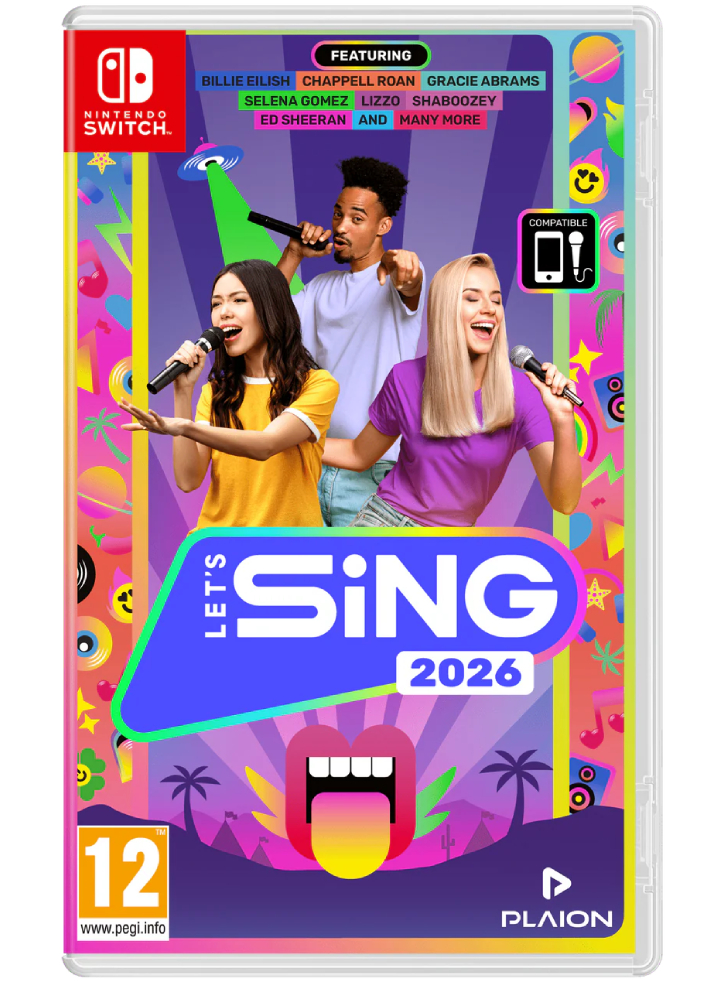
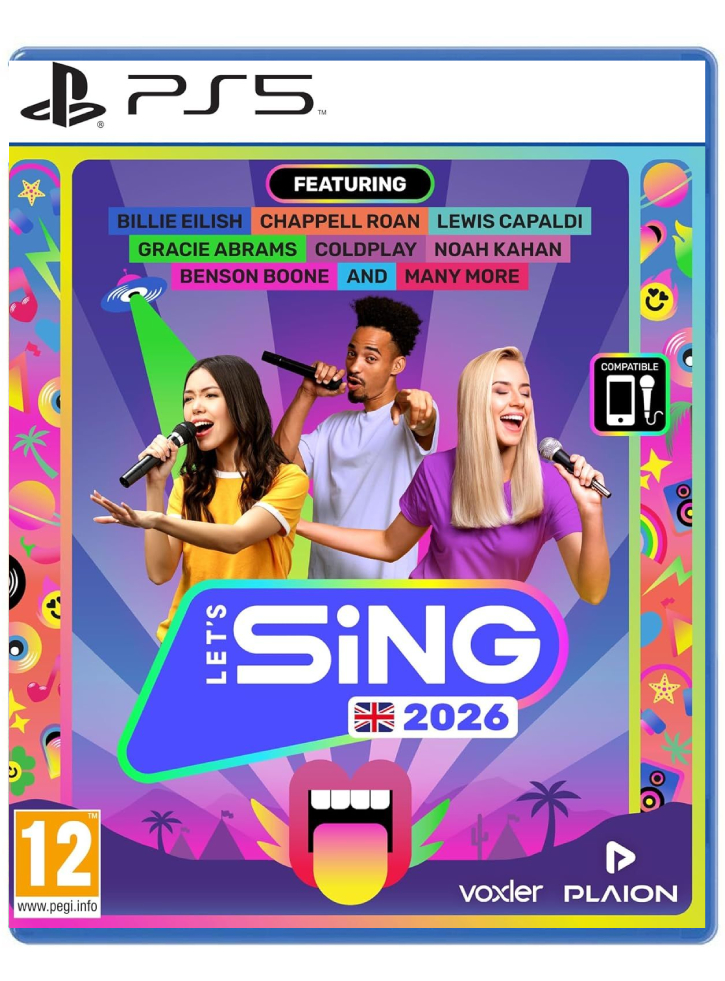


Joc Let S Sing 2026 Pentru NSW Main . Joc Let S Sing 2026 Pentru PS5 Main . EXPIRED Steam Spring Sale 2026 Massive PC Game Deals Across Thousands Steam 21 Mar 2026 . Buy Lets Sing 2026 NINTENDO SWITCH Code At Best Prices Gocdkeys Lets Sing 2026 Nintendo Switch 1.webp. Steam Next Fest February 2026 Edition Coming Soon




Nuova Steam Machine 2026 Giochi Compatibili E Data Di Nuova Steam Machine 2026.webp. Steam Starts 2026 With 4 New FREE Games No Strings Attached Steam Logo In Forest . Steam Inonde 2026 De Promotions La Fin Des Vraies Soldes Steam Sale Dates . When Is The Next Steam Sale . Countdown And History . SteamDB Google Chrome . TEST LET S SING 2026 LE TIROIR JEUX LS26 KA 1 1 FR . Let S Sing 2026 2 Mic Bundle Switch LS26 Beautyshot 2Mic 250620 ACB




TEST Let S Sing 2026 Peu De Nouveaut S Beaucoup De Fun GAMEJIMA Let S Sing 2026 Cover 750x422 . Let S Sing 2026 Nintendo Switch Dobra Cena Sklep Online IT Store Lets Sing 2026 Nintendo Switch . 2026 Just Sing CUAAASC . Let S Sing 2026 With Hits NSG Reviews. Let S Sing 2026 Pronto A Portare Allegria Anche Quest Anno In Image00116 800x445



Steam Trains 2026 Wall Calendar Calendars Com 1e9e8696 E687 4eae 87c7. Steam Trains 2026 Mini Wall Calendar Calendars Com . Steam 2026 4 New Free To Play Games Available Now AllKeyShop Com Showcase Steam Free Games 2026 Indie F2p Card Roguelike Sci Fi. Steam Next Fest 2026 And Beyond All The Dates Details And Everything. 11 Demos From Steam Next Fest February 2026 Steam Next Fest Thumbnails


Steam Sales 2026 Calendar Full Dates Best CD Key Deals AllKeyShop Com All Steam Events 2026 1.webp. Steam Next Fest 2026 And Beyond All The Dates Details And Everything